
Support
Get help with orders, downloads, licenses, and plugins.
Help & Tutorials
Video tutorials and guides to help you get started
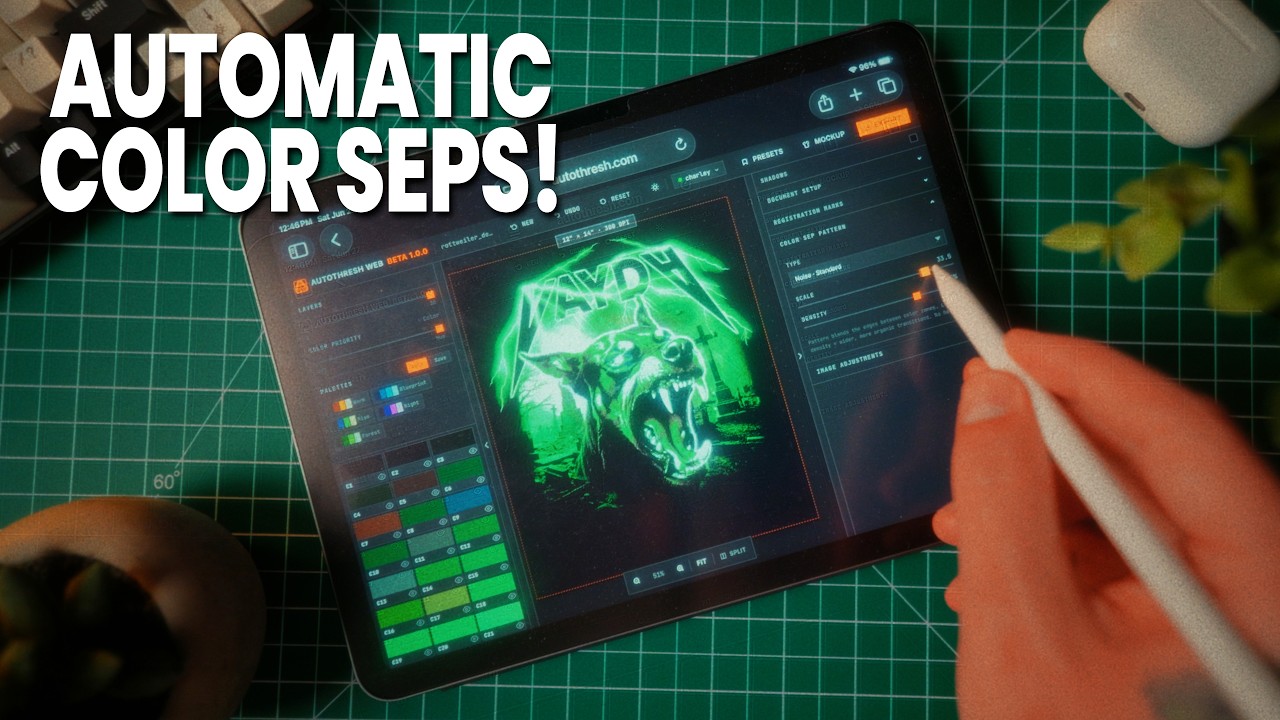
AutoThresh Web Tutorial
Get started with AutoThresh Web — browser-based color separation
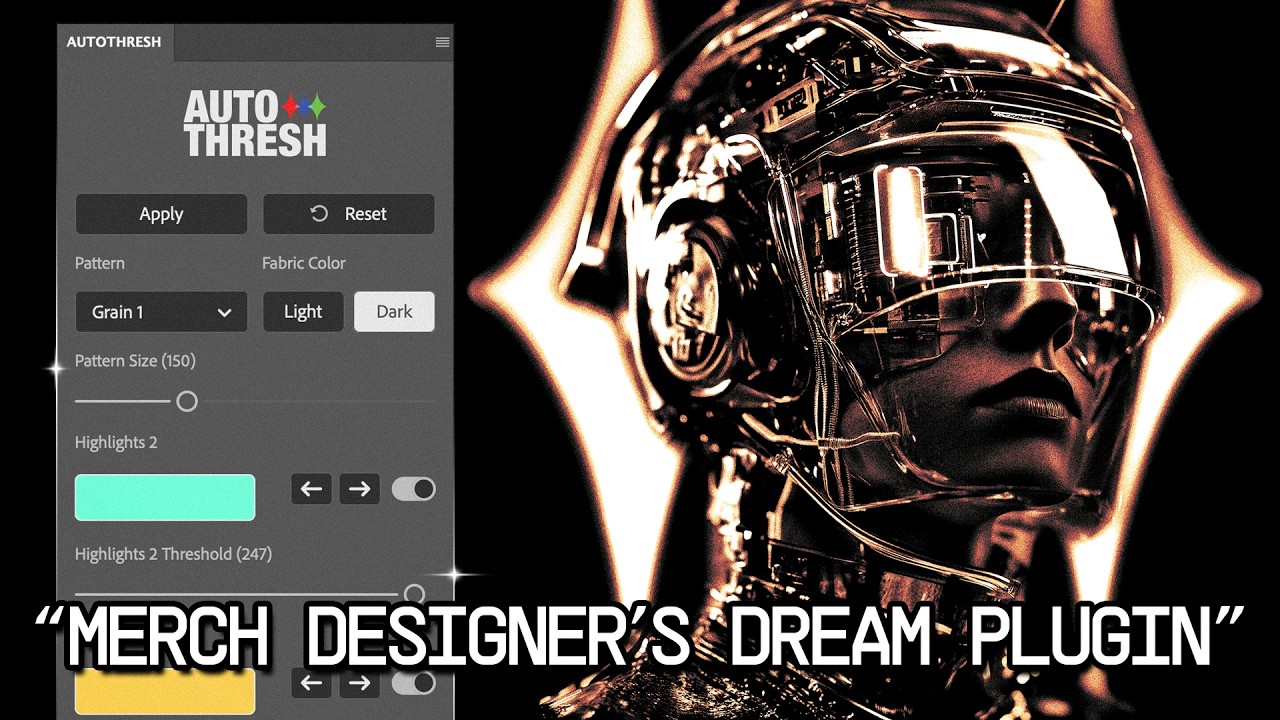
Autothresh Tutorial
Learn how to use Autothresh for automatic threshold adjustments
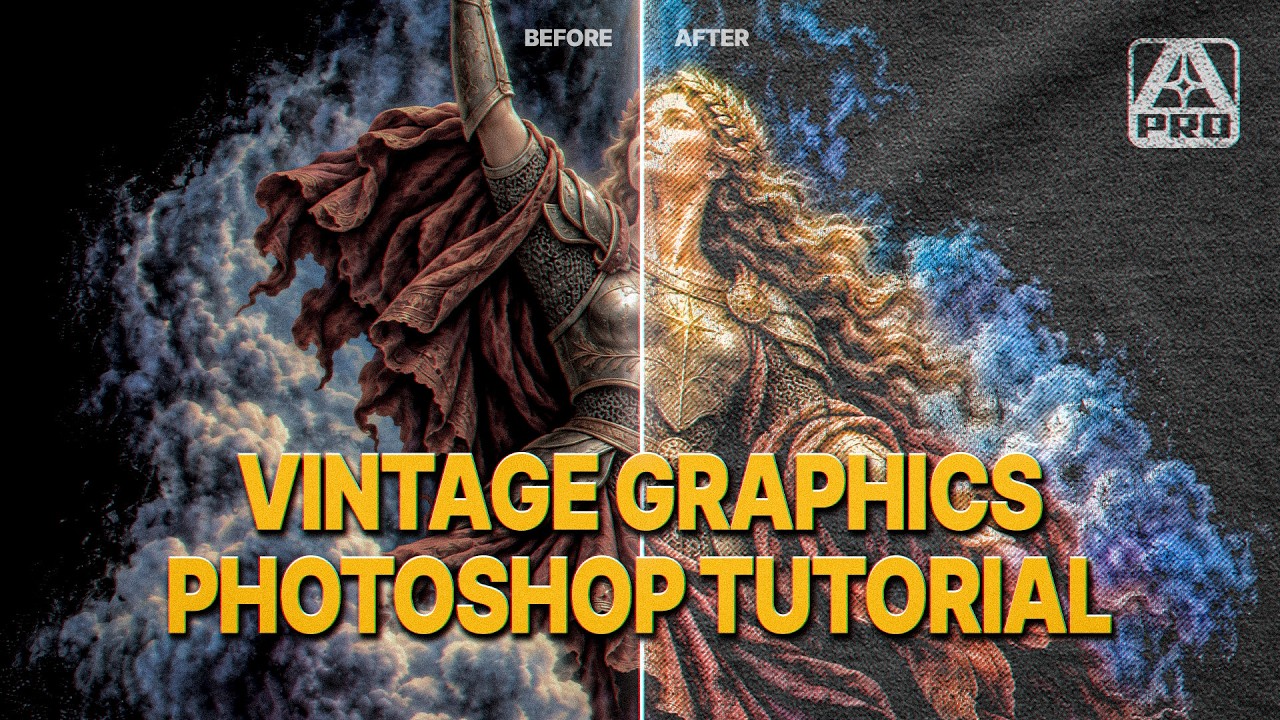
AutoThresh Pro Tutorial
Complete walkthrough of AutoThresh Pro features and workflow

Displacecraft Pro Tutorial
Create displacement maps in one click, browse the image library, and use the Melt tool
Style Forge Tutorial
Learn how to use Style Forge for creative effects
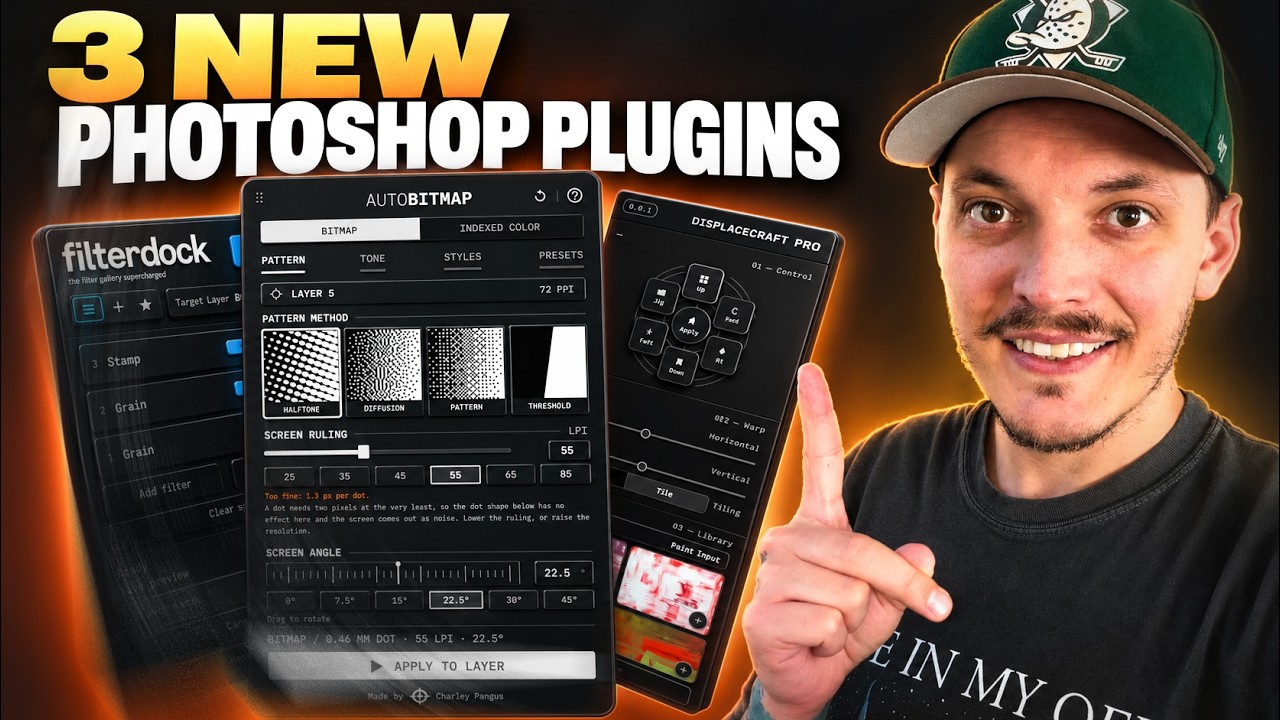
AutoBitmap, Filter Dock & Displacecraft Pro Tutorial
Full walkthrough of all three new plugins: AutoBitmap, Filter Dock and Displacecraft Pro
Guides
Step-by-step guides and documentation
Installing Your Plugin
macOS and Windows · .ccx files
Every Charley Pangus Photoshop plugin arrives as a .ccx file. Double-click that file and let the Creative Cloud desktop app install it. Creative Cloud registers the plugin with Photoshop, which is what makes it appear in the Plugins menu. The steps are the same on macOS and Windows.
Before you install
Install Photoshop and the Creative Cloud desktop app, and sign in to Creative Cloud.
Open Photoshop once so Adobe can see it, then quit Photoshop completely.
Leave the downloaded file as a .ccx.
The four steps
Quit Photoshop
Open Photoshop once if you have never opened it on this computer, then quit it completely. On macOS choose Photoshop > Quit Photoshop. On Windows close every Photoshop window.
Double-click the .ccx
Find the file you downloaded. The name ends in .ccx. Leave that extension as it is. Double-click the file. The Creative Cloud desktop app opens.
Choose Install
Creative Cloud warns that this package came from outside the Marketplace. That warning is expected for a purchase from charleypangus.com. Choose Install. Accept the permissions if asked. On macOS you may be asked for your computer password.
Open the panel
Open Photoshop, then choose Plugins and the name of the plugin you bought. For AutoThresh Pro, that is Plugins > AutoThresh Pro. The plugin is registered to your Adobe account. You do not copy a folder into Photoshop by hand.
If double-click does not open Creative Cloud
Open the .ccx with Unified Plugin Installer Agent, then choose Install. On macOS, Control-click the .ccx, choose Open With, then Other, and select the app below. On Windows, right-click the .ccx, choose Open with, and select UnifiedPluginInstallerAgent.exe.
macOS
/Library/Application Support/Adobe/Adobe Desktop Common/RemoteComponents/UPI/UnifiedPluginInstallerAgent/UnifiedPluginInstallerAgent.app
Windows
C:\Program Files\Common Files\Adobe\Adobe Desktop Common\RemoteComponents\UPI\UnifiedPluginInstallerAgent\UnifiedPluginInstallerAgent.exe
If the panel is still missing
Delete any copy you placed by hand, then install the .ccx again and restart Photoshop. A folder dropped into Adobe/UXP/Plugins/External, or into Photoshop's Plug-ins folder, is never registered, so it will not appear in the Plugins menu. On macOS that External folder is ~/Library/Application Support/Adobe/UXP/Plugins/External/. On Windows it is %AppData%\Adobe\UXP\Plugins\External\. In the Creative Cloud desktop app the installed plugin is listed under Manage plugins.
Where to find it
After Photoshop reopens, the panel is in the Plugins menu at the top of the screen. If it is not listed, quit Photoshop completely and open it again. In the Creative Cloud desktop app, open Manage plugins and confirm the plugin is installed there first.
Questions about an order or a license key? Head to the Contact tab and have the order number from your purchase email ready.
Release Notes
Latest updates and patches for our products
AutoThresh™ Pro 3.0.1
OCTOBER 2026
AutoThresh Pro 3.0.1 adds color, shadow, and paint control on top of the separations you already make.
FIXES
Patterns stay on the ink. Solid areas no longer get random holes punched through them.
IMPROVEMENTS
Full Color keeps the artwork’s own color over the tonal bands. Set the blend, how strong the color is, and the saturation. Made for DTG and DTF. Screen Print export turns off while Full Color is on.
Shift puts a drop shadow behind any color. Pick the color, the shadow color, the angle, and the distance in pixels. It exports with the separations.
Dodge and Burn lets you paint detail back in or out. Dodge brings shadow detail back. Burn holds it out. Press Done before you export so the paint is in the files.
Contrast sits in Tone Adjust and pushes tones away from the middle or pulls them back. Zero leaves the image alone.
NOTES
The Help tab in the panel covers each of these.
AutoThresh™ Pro 2.0.3
JULY 2026
A complete rebuild of the plugin with a brand new UI, smoother live workflow, and expanded pattern control.
IMPROVEMENTS
Rebuild plugin from the ground up with a new UI
Polished live workflow features such as Start Live and Stop Live
Improved overall workflow speed and reliability
More pattern options and control for finer customization
AutoThresh™ Pro 1.1.0
APRIL 2026
This update fixes UI issues on smaller screens and improves performance on older Photoshop versions.
FIXES
Fixed UI issues that prevented users on smaller screens from scrolling within the plugin panel
Plugin panel now dynamically resizes to fit your screen
IMPROVEMENTS
Small performance improvements when using Photoshop version 27.4 or older
AutoThresh™ Pro 1.0.1
FEBRUARY 2026
This update fixes several issues caused by recent Photoshop updates and improves stability, exports, and compatibility.
IMPORTANT — PLEASE REINSTALL THE PLUGIN
Before using version 1.0.1, make sure you remove the old plugin files.
Delete your current AutoThresh Pro plugin folder
Download the new .zip
Extract the zip
Copy the new plugin files into your Plugins folder
Open Photoshop after installing
Do not keep old files. Mixing old and new files can cause errors.
FIXES
Fixed issues where Photoshop could apply effects to the wrong layers after recent Photoshop updates
Fixed random errors caused by changes in newer Photoshop versions
Fixed color picker errors when clicking color swatches
Fixed blurry DTG exports
Fixed export alignment issues
Fixed blur and adjustment sliders affecting the wrong layer
Fixed freezing on export during the canvas size popup
IMPROVEMENTS
Added center registration marks to screen print exports
DTG export now detects artwork size automatically
Improved layer selection for better stability
Updated plugin to work with the latest Photoshop system
COMPATIBILITY
Works with Photoshop 2022 and newer
Tested on the latest Photoshop versions
Uses Adobe's current plugin system for better long-term support
NOTES
Recent Photoshop updates changed how plugins work behind the scenes. Version 1.0.1 updates AutoThresh Pro to match these changes and should be more stable going forward.
Product Fixes
Known issues and community-sourced solutions for individual products
AutoThresh™ Pro
Printer Error When Running Plugin
WINDOWS
SYMPTOM
Photoshop displays a printer-related error when trying to run AutoThresh Pro, preventing the plugin from loading.
CAUSE
This is caused by a security/permissions conflict between Photoshop and your system's default printer driver. Photoshop attempts to communicate with the default printer during certain plugin operations, and if the driver blocks it, the plugin fails to execute.
SOLUTION
Open Windows Settings → Bluetooth & devices → Printers & scanners.
Turn off "Let Windows manage my default printer".
Set your default printer to "Microsoft Print to PDF".
Restart Photoshop and run AutoThresh Pro again.
Fix discovered by a community member — thanks for sharing! 🙌
Freeze on Canvas Size Panel (Photoshop 27.4)
SYMPTOM
AutoThresh Pro freezes or becomes unresponsive when the Canvas Size panel appears during export. This only occurs in Photoshop version 27.4.
CAUSE
Photoshop 27.4 introduced an export bug that causes the Canvas Size dialog to hang when triggered by plugin scripts. This is a Photoshop-side issue, not an AutoThresh Pro bug.
SOLUTION
Open the Creative Cloud desktop app.
Go to Photoshop → "Other versions" and install version 27.3 or earlier.
Use the downgraded version until the issue is resolved.
A patch (Version 1.0.1) will be sent via email to address this for 27.4 compatibility.
Frequently Asked Questions
Quick answers to common questions about our products
What versions of Photoshop does AutoThresh Pro support?
AutoThresh Pro is compatible with Photoshop 26.9.0 and newer. We recommend keeping Photoshop up to date for the best experience.
Does AutoThresh Pro work in Photoshop Beta?
It does! However, since Beta builds are experimental by nature, we can't guarantee full stability. If you run into issues, we recommend switching to the latest stable release.
Do your plugins work with Affinity?
Not at this time — our plugins are built exclusively for Adobe Photoshop. That said, we're always exploring ways to expand compatibility in the future.
Can I share my license key with someone else?
License keys are tied to individual purchases and are not transferable. Sharing or redistributing license keys is not permitted under our license agreement.
Will AutoThresh Lite continue to receive updates?
Absolutely! AutoThresh Lite isn't going anywhere. We're actively working on improvements and new updates are already in the pipeline.
Is AutoThresh Web still a subscription?
No — AutoThresh Web is now a one-time purchase. Pay once and it's yours forever, including all future updates. If you had a legacy subscription, it stays active until the end of its paid term and won't renew.
Contact Support
Need help? Send us a message and we'll get back to you.